
Overview
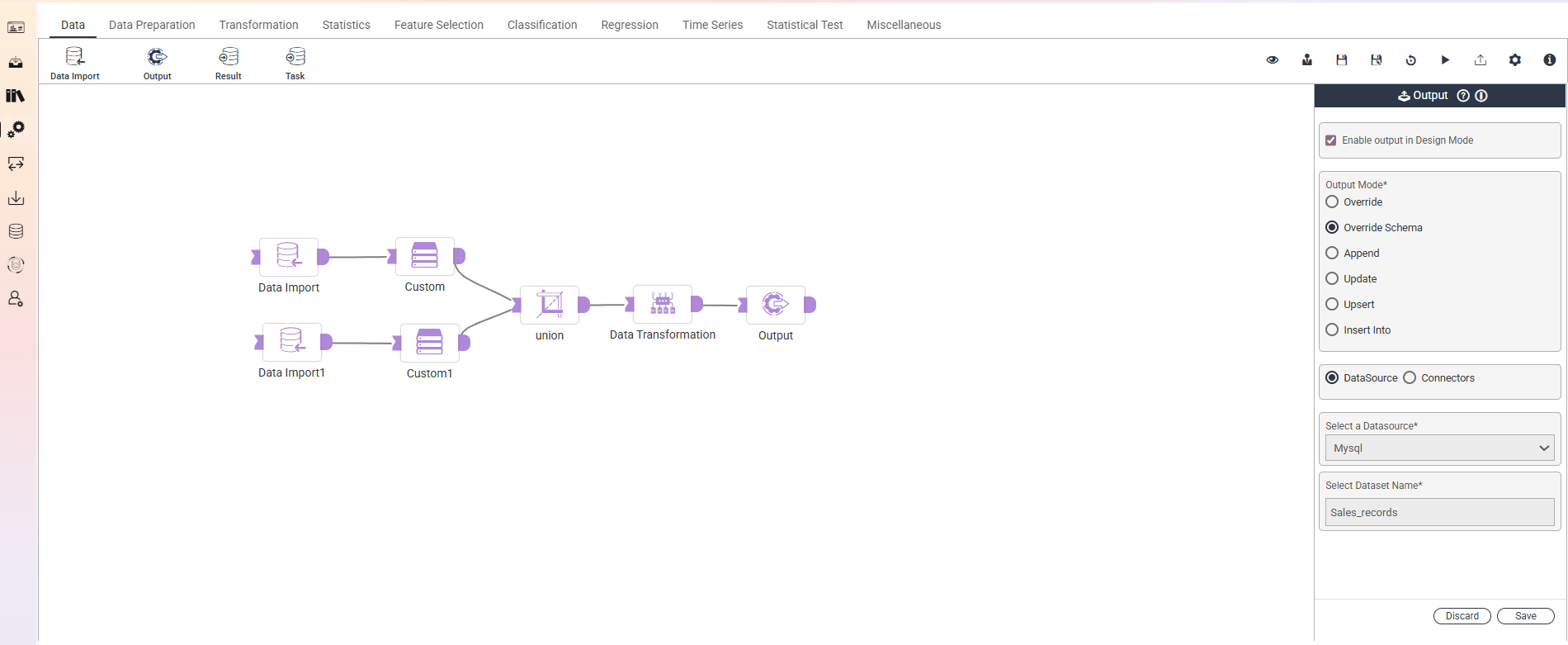
The Output node is the destination node in a Weave Workflow. It writes the data produced by upstream nodes to either a Datasource (database table) or a Connector (file in CSV or Excel format). Output nodes are terminal — they accept upstream input but emit nothing to further downstream nodes. A Workflow typically ends at one or more Output nodes; multiple Output nodes can fan out the same upstream data to different destinations.
The node exposes four write modes via radio buttons — Override, Append, Update, Upsert — that control how the incoming data interacts with existing data at the destination. Update and Upsert require a primary key for row identification; Update additionally requires column selection. File destinations support max-records-per-file splitting and date-expression file naming.
Note: “Workflow” is the in-UI term for what some Weave documentation calls a pipeline. This reference uses “Workflow.”


When to use it
- Writing a Workflow’s processed output to a database table for downstream Reports, applications, or further pipelines to consume.
- Exporting transformed data to a file (CSV / Excel) for distribution, backup, or external system consumption.
- Synchronizing data between systems where the Workflow extracts from one source and loads into another.
- Maintaining incrementally updated tables — Update for known-row modification, Upsert for mixed update-and-insert.
- Refreshing aggregated or reference tables on schedule via Override.
Role in the Workflow
| Upstream inputs | One input. Accepts data from a Data Import, transformation, or other upstream node. |
| Downstream outputs | None. Output is a terminal node — its work is writing to a destination, not emitting data forward. |
| Destination | Either a Datasource (database table) or a Connector (file). |
| Run trigger | Manual via the node’s Run icon for testing, automatic when the Workflow runs as a whole. |
Write modes
The four write modes control how the incoming data interacts with existing data at the destination. Pick exactly one per Output node.
| Override | Truncates the existing destination table and writes the current Workflow’s data. Destructive — existing data at the destination is replaced. | Each Workflow run produces a complete replacement of the destination (e.g., daily full-table refreshes, reference data updates). |
| Append | Adds new rows below existing rows in the destination. Existing rows are untouched. | Each Workflow run produces new records to accumulate (e.g., log streams, transaction inserts, time-series data). |
| Update | Modifies selected columns of existing rows identified by a primary key. Rows in the upstream that don’t match an existing primary key are not written. | Each Workflow run produces updated values for known records (e.g., recalculated metrics on existing customers, status updates on existing orders). |
| Upsert | Combines Update and Insert: rows that match the primary key are updated; rows that don’t match are inserted as new records. | Each Workflow run produces a mix of new and existing records (e.g., daily syncs where some entities are new and some have changes). |
Destination types
Each Output node writes to one destination — either a Datasource (database) or a Connector (file). The configuration UI differs by destination type.
Data Source destination
| Data Source | The configured Datasource the table is written to. |
| Dataset Name | The destination table’s name (User given) in the Datasource. |
| Primary Key (Update, Upsert) | Column or combination of columns uniquely identifying rows. Required for Update and Upsert. Multiple columns can be selected to form a composite key. |
| Update Columns (Update, Upsert) | Columns to modify on matched rows. Selected via a column-selection popup. |
Connector destination
| Connector | The configured Connector the files are written to. |
| File Type | Output file format. |
| Folder Name | Destination directory on the Connector. |
| File Name | Destination file name. Supports date expressions in square brackets. |
| Max Records Per File | Splits output into multiple files when the upstream row count exceeds this limit. Acts as a ceiling — outputs smaller than the limit produce a single file. |
| Apply (button) | Commits the Connector configuration. |
File name date expressions
File names on Connector destinations can include date expressions enclosed in square brackets. The expressions are substituted with the corresponding date / time values at run time.
| [YYYY] | Four-digit year (e.g., 2026) |
| [YY] | Two-digit year (e.g., 26) |
| [DD] | Day of the month |
| [H] | Hour |
| [M] | Minute |
| [S] | Second |
Primary key and column selection (Update and Upsert)
Update and Upsert modes require identifying which rows to modify. This involves two configuration steps.
| 1. Select primary key | Click the Select button next to the primary key field. A popup appears with the upstream columns. Choose the column or columns whose values uniquely identify rows. |
| 2. Select update columns | Click the Update button. A popup appears. Select the columns that should be modified on matched rows. |
Primary key columns must contain unique values. If duplicates exist, row matching is ambiguous and writes produce incorrect results.
Design In View
Output nodes expose a Design In View checkbox. When enabled, the node’s output is available in the design canvas during authoring.
Save / Discard
Configuration follows the Workflow-wide Save / Discard discipline. Changes don’t persist until Save is clicked. Discard reverts to the last saved state. Closing or navigating away without choosing either triggers a warning popup.
Key behaviors
Output is terminal. The Output node accepts upstream input but does not emit data forward. Workflows end at one or more Output nodes; no further nodes can be chained downstream.
Mode selection is exclusive. Override, Append, Update, and Upsert are exclusive radio button choices — exactly one applies per Output node. To write the same upstream data to a destination using different modes (e.g., Append to a log table AND Upsert to a master table), use two Output nodes from the same upstream branch point.
Override is destructive. Override truncates the destination table before writing. Existing data is gone — there is no rollback from within the Output node. For destinations where data must be preserved, use Append, Update, or Upsert.
Fan-out via multiple Output nodes. A Workflow can have multiple Output nodes that all consume from the same upstream point — useful for writing the same processed data to multiple destinations (e.g., a database table AND a CSV file, or a production table AND a backup table).